Identify the laptop port precisely
Start with the laptop's exact model and port documentation. Two USB-C sockets can offer different functions even on the same machine. Check data capability, display output and charging support separately. A dock cannot create a native display feature that the host port lacks merely by providing more sockets.
Some docks use additional display technology that needs a driver. That can be useful, but it is a different arrangement from a native video connection. Confirm operating-system support, installation permissions and the intended use. A work computer whose administrator blocks extra software may narrow the choice before price becomes relevant.
Write down the screen arrangement
List the number of monitors, their resolution, refresh rate and available inputs. Then find the dock's supported combinations for your particular operating system and host connection. A listing that mentions two outputs does not necessarily promise two independent extended desktops at every resolution. Mirroring and extending are different requirements.
Check the cables needed between dock and screens as well as the cable to the laptop. Adapters introduce another compatibility step. If you already have monitors, use their actual inputs in the comparison rather than planning around whichever ports look most modern in a product photograph.
Account for power and accessories
Look at the power delivered to the laptop, not only the rating of the dock's adapter. The dock and attached devices can have their own power budget. Compare the delivered figure with the laptop manufacturer's requirements for your workload. Some laptops need their own charger even when connected to a dock.
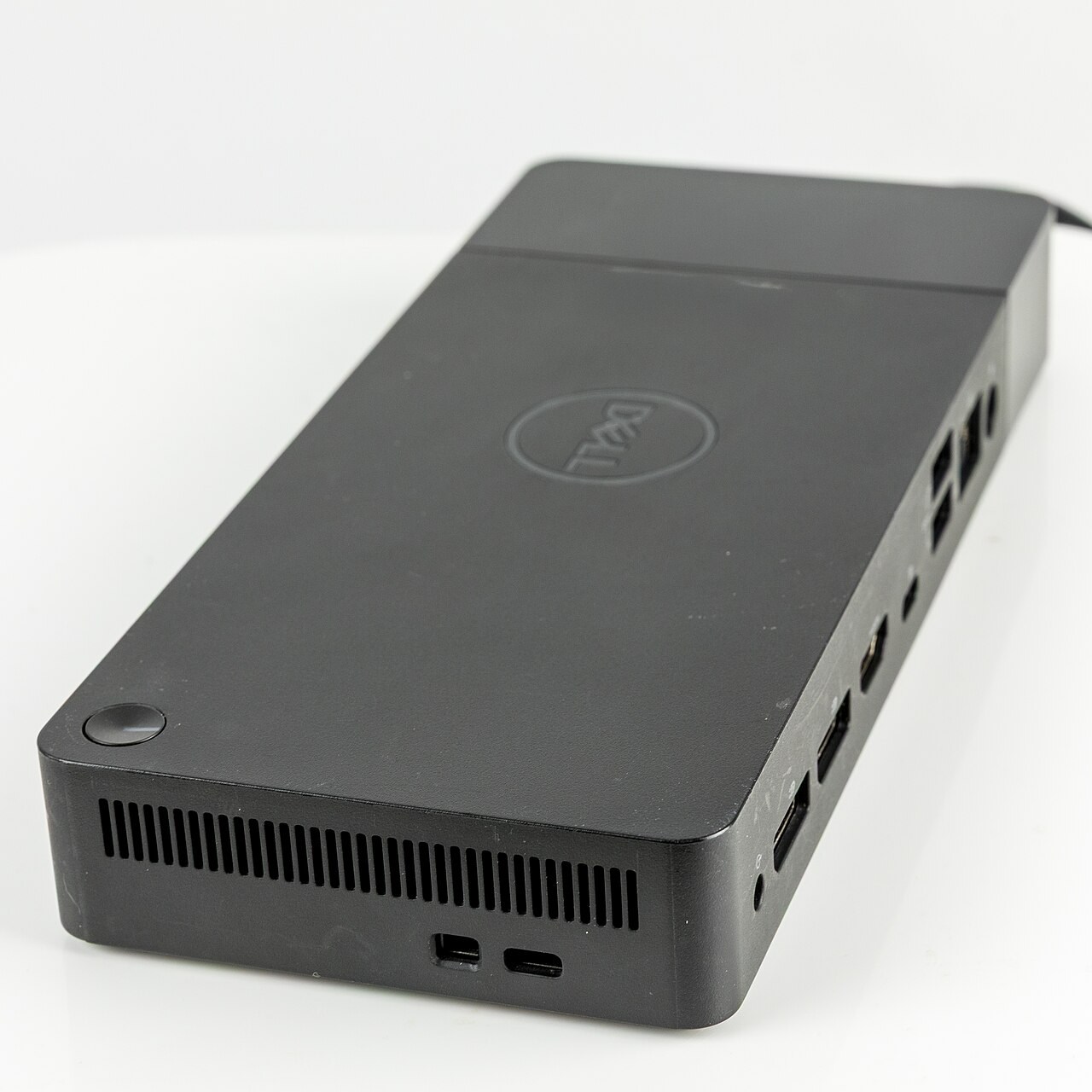
Count other connections: keyboard, mouse, storage, network and audio. Check which share bandwidth and whether any ports are intended only for charging. A busy desk may benefit from accessible front ports for temporary devices and rear ports for cables that stay connected. The physical arrangement matters as much as the socket list.
Build a compatibility note for your desk
Take a hypothetical desk with a laptop, two existing monitors, an external SSD and a keyboard. Start by listing each monitor input and the desired display mode. Next, identify the laptop port that supports the relevant output. Only then compare docks whose documentation covers that two-screen arrangement on the laptop operating system. This prevents buying a dock first and discovering that the screens require an unsupported combination of adapters.
Add the SSD to the note as a data requirement rather than another anonymous socket. If it is used for large transfers while both displays are active, read any bandwidth or port-sharing notes. The keyboard may fit a lower-speed port, leaving an appropriate port accessible for storage. This is a planning example, not a promise that every dock handles those devices alike.
Finally, record the laptop charging requirement and the power delivered by the dock. If a separate laptop adapter remains necessary, decide whether the dock still provides enough convenience to justify its place. A two-cable arrangement that is documented and stable can be preferable to forcing a single-cable ideal. The comparison should reflect the equipment you already own, not a showroom desk built around a different computer.
Keep one fallback route
Before relying on the dock for a meeting or deadline, test sleep, wake, charging and each display mode. Save the model details and the known working cable arrangement. If a screen fails, a direct supported connection can help distinguish a monitor issue from a dock-path issue.
Compare the total purchase, including an appropriate power supply and cables that may be absent from the box. A dock that supports your exact setup with clear documentation is easier to own than one with an impressive port count and an unclear compatibility statement.