Name the job before the cable
USB-C describes a connector shape, not one universal capability. A cable used only to charge a phone has a different job from one linking an external SSD or a monitor. Write down the two devices and what must pass between them: power, data, video or a combination. That short description makes a crowded product listing much easier to assess.
Check the ports on both devices as well as the cable. A capable cable cannot add video output to a port that does not provide it, or make a slow device transfer faster than its own interface. The whole connection needs the relevant support.
Read power and data independently
A power rating tells you what the cable is designed to carry under the relevant conditions. A data rate describes a different capability. Do not interpret a high charging figure as evidence of fast file transfer. USB-IF's cable guidance distinguishes power markings from data-rate markings, which reflects the fact that these are separate properties.
If the listing uses only words such as fast or premium, look for explicit specifications. Compare the exact version and length being sold: a longer cable in the same range may not share every capability. Keep any required certification or device-specific cable guidance in view rather than relying on the appearance of the plugs.
Compare three superficially identical leads
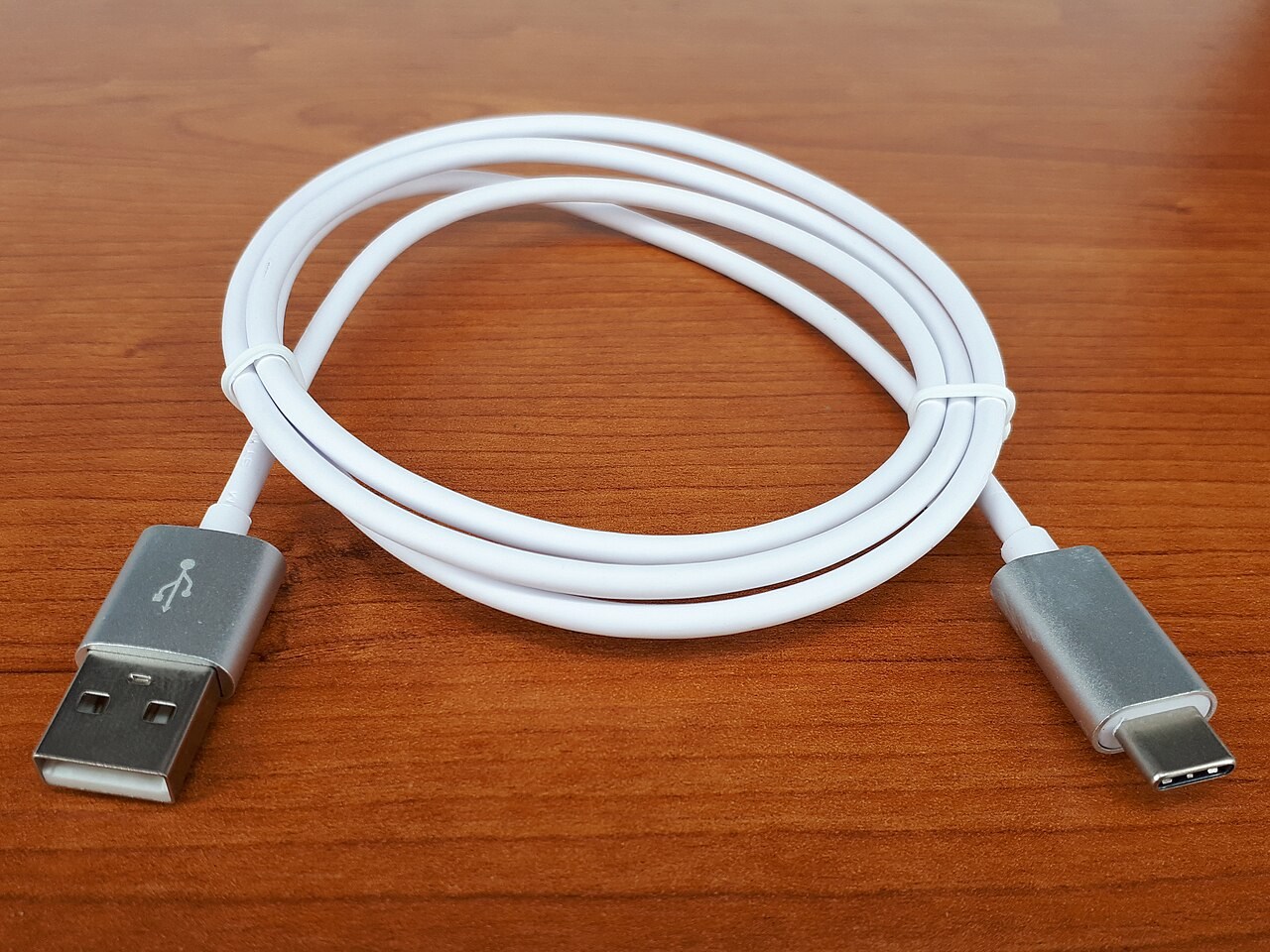
Consider three hypothetical USB-C-to-USB-C cables: one documented for charging and basic USB data, one with a higher stated data capability, and one explicitly suitable for the display connection you need. They may look almost identical. For a phone beside the bed, the first may be sufficient if its power rating matches. For an SSD, its data limitation may matter. For a monitor, the explicit video compatibility becomes essential.
This is why borrowing a random lead from a charging drawer is a poor diagnostic test for a blank screen. A cable can be working exactly as designed and still be wrong for the task. Before replacing the monitor or dock, compare the borrowed lead against the requirements of the known connection.
Keep a simple label or note for cables with a specific job, such as the dock lead or the SSD lead. Record the model rather than inventing a capability from its colour or thickness. If a cable later becomes damaged, buy against those recorded specifications. A replacement that physically fits but loses video or data performance can otherwise turn a straightforward repair into an apparently unrelated device problem.
Fit the route without adding strain
Measure the path from port to device with a little room for movement. A short cable can pull on a laptop connector, while excess length can create a tangle on a desk. Right-angle plugs may help in a tight space but can point the wrong way or obstruct another port. Check their orientation against the actual device.
For a monitor or dock, confirm the supported display arrangement in the device documentation. Do not substitute a charge-only cable and assume a blank screen proves that the dock has failed. Label specialised cables when you unpack them so that a future swap does not remove a capability you were relying on. A modest cable with clear specifications is easier to choose and troubleshoot than an impressive-looking one with no precise description.