Use the current mouse as evidence
Before comparing new models, notice what is inconvenient about the one you use. Do your fingers reach the side buttons without shifting the whole hand? Does the rear fill the palm more than you want? Is lifting and repositioning awkward? These observations are more useful than choosing a grip label and assuming every mouse assigned to it will fit.
Measure available desk space and consider the movement you make. A mouse used for spreadsheets may be handled differently from one used for detailed drawing. Weight and balance can affect how it feels, but no single weight is correct for everyone. Compare the complete device, including batteries where applicable.
Check the less visible dimensions
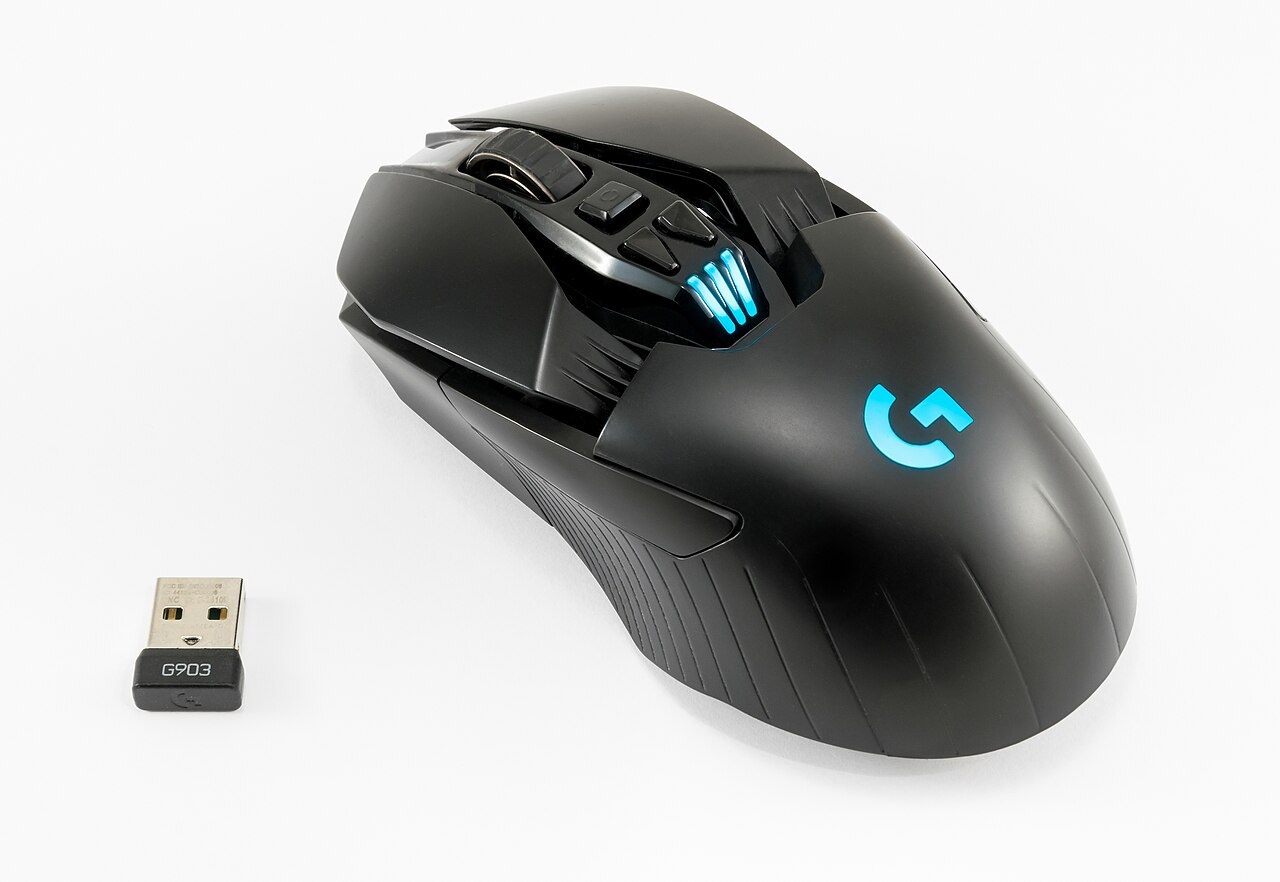
Length is only one part of shape. Width at the grip, hump position and the slope beside the thumb can change how the hand sits. Product photographs taken from above may conceal those differences. Look for side and rear views, and try a display model where possible without treating a brief hold as proof of all-day comfort.
Handedness matters too. A symmetrical shell can still have side buttons placed for one hand. An explicitly left-handed model may offer a different arrangement from a reversible-looking mouse. Check the actual button locations and whether their functions can be changed on your operating system.
Fit the connection to the computer
Bluetooth, a dedicated receiver and a cable have different ownership details. A receiver occupies a port and can be lost; Bluetooth support must be available on the computer; a cable needs room to move. Check whether the advertised battery figure assumes settings you intend to use and whether charging allows continued operation.
For a work machine, confirm that basic functions and any required remapping work under its software restrictions. Extra buttons are useful only if you can reach and configure them. A simpler model may be easier to share between computers.
Give the trial a defined task
Try selecting text, scrolling a long page and clicking small controls. Notice whether you grip harder or change hand position to reach a button. Make one change at a time, including pointer speed, so you can distinguish shape from settings. If discomfort persists, do not assume a new mouse alone resolves the wider workstation issue. Choose a fit you can evaluate through normal tasks and within the seller's trial conditions.